
I thought it would be fun to design and create a couple of photo valentines that people could download and add their favorite picture to. Valentine’s Day is coming up so quickly! If you haven’t lined up your valentine ideas yet, feel free to utilize and enjoy these.  They are .png files, which can be opened up in your favorite photo editing software. If you don’t have editing software, scroll down to get instructions to use a free online editor!

 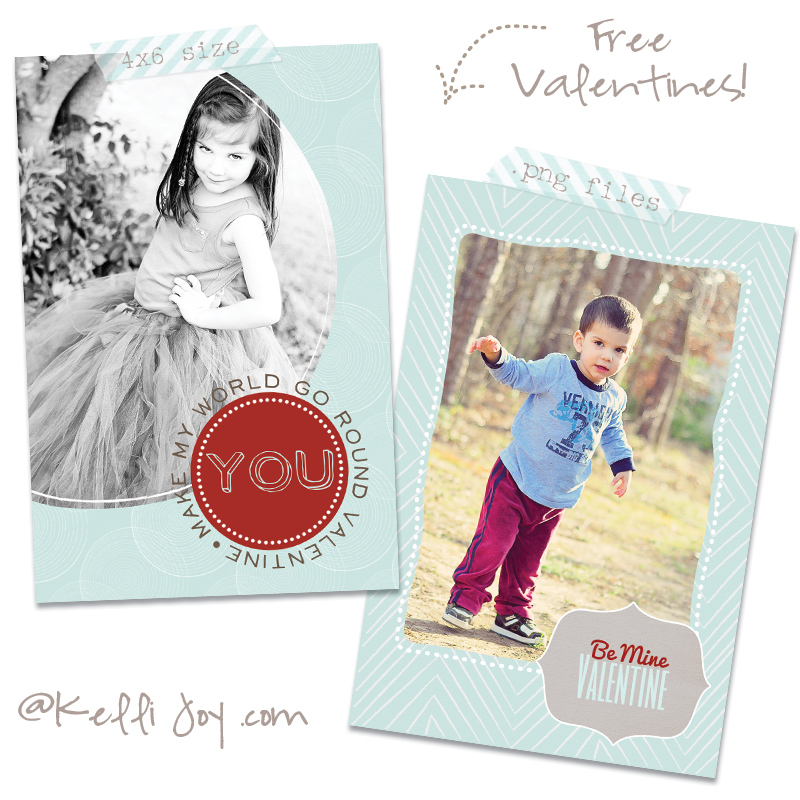
Choose from:
WORLD GO ROUND & BE MINE
INSTRUCTIONS:
- Open up file in your preferred photo editing software (that supports layers).
- Add your photo and place *beneath* the valentine on a separate layer (align/rotate as needed)
- Flatten image and save as a new image file
- Print out on your printer, {or have them printed for you at somewhere like Persnickety Prints}
- Enjoy!
If you *DON’T* have an image editor that supports layers, never fear… check out this easy free online editor (that supports layers!) and will allow you to easily create your valentine without having to download any software: http://advanced.aviary.com/online/image-editor. (You’ll need to set up a free account.)
Here are some specific instructions for the Aviary editor to help get you started:
- Click on “Load an Image File” to get started (it will be in the middle of your screen in a blue selection box)
- “Browse” and choose your chosen valentine from the location you where you saved it, then click “upload”
- The image will pull up. Use the slider in the top right corner (set at 100%) to zoom out a bit so you can see the whole image
- Go to “File” – “Import File” to add your own photo (Choose “Browse” and “Upload” again to add the pic)
- The photo will now be in a layer on *top* of the valentine. [Notice the layers on the right-hand side] Simply drag the photo layer *below* the valentine layer.
- You may need to adjust the size of (scale) your photo to fit properly behind the .png valentine file. To do this, first make sure you select the photo layer. Then click on the second arrow-looking tool on very the left-hand side of the screen (hover over will show “Transformation Tool”). You will see a bounding box appear. Hold the shift key down while you drag one corner of the photo to scale. You can also rotate by hovering over the corner of the photo until you see the rotation arrow appear. Then simply drag the photo to move it into correct position.
- That’s it! Once you have it looking the way you like, click on “File” – “Export Image”. Choose “.jpg” from the drop-down menu of file types and then click “Generate Image”.  A pop-up will appear telling you the image is being generated. When the “download” button becomes active, just click on it. It will then ask you for your desired file name and location. Once you input those fields, and hit “Save” your new valentine will be saved and ready to be printed!
Enjoy!
Will this work with LR or only PS?
You need to have software that utilizes layers, so you can put your photo behind the .png file, which retains transparency 🙂 I included some instructions on using a free online editor (that utilizes layers) so anyone can use these!